
User Guide
Netiquette
- Be polite and respectful to each other.
- Accept everyone’s opinion or approach to the given topics.
- Listen to what the moderator / moderation team says.
- Mute your microphone unless you need to be heard.
- Help others out! If anyone is struggling try to assist.
- Take part actively in your group sessions but also leave space for others to participate.
- No spam.
Remember the Human!
TOOLS
Use Mentimeter to vote and Conceptboard for working in groups! Check out how to use the tools in the section below.
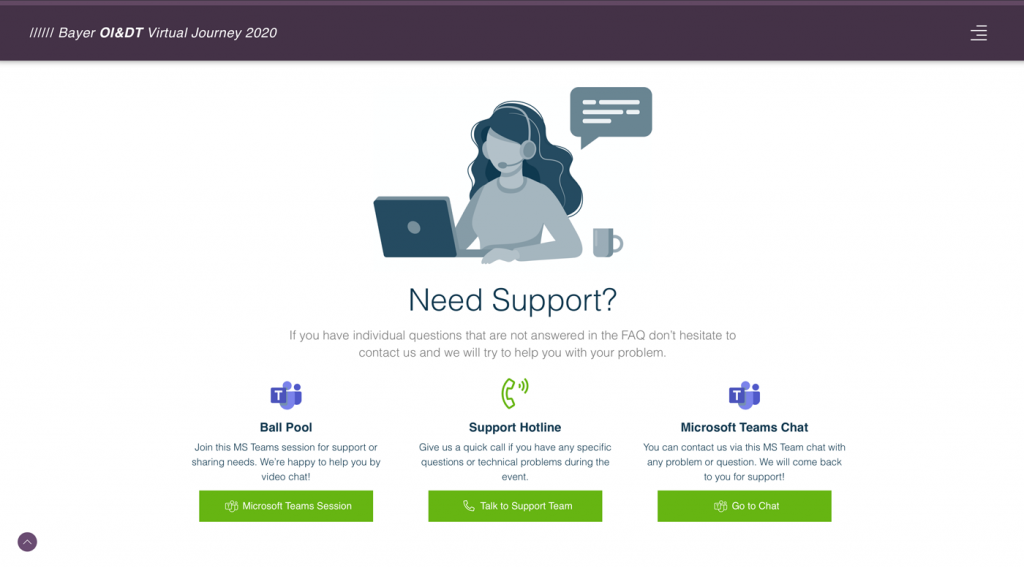
Website

Livestream via Website
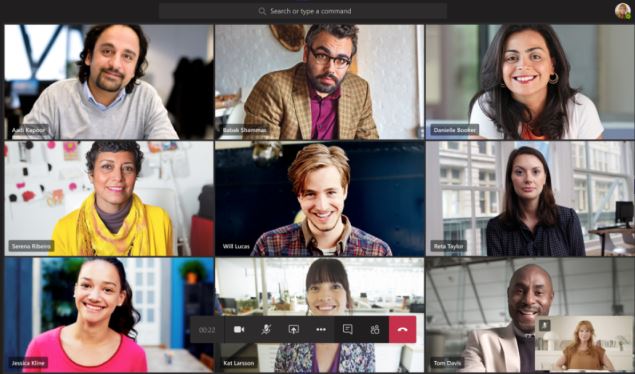
Microsoft Teams
- Go to the agenda and navigate to the specific session
- Take a look at your ticket to see in what room your session is
- Click on your individual room to enter your teams space
- Alternatively you can also follow the link in your calendar to enter your session
Conceptboard
- You will receive the link in your Microsoft Teams chat and via E-Mail
- Open the link to your Conceptboard - be sure to use Google Chrome or Firefox as a browser
- Login to Conceptboard as Guest
- Enter your name
- Get started!
Bayronnect
- Register on Bayron via SSO and enter a meetup
- You will then be matched with people and, once you're ready by clicking, get connected to your partner for a five minutes chat
- Once the five minutes are over the software guides you automatically back to the lobby
For -Users: Use Special-Apps-VPN and Firefox or Chrome for the Speed Networkings and the Gaming session in Social Experience on Day 1!
Microsoft PowerPoint
PowerPoint will be used additional to Conceptboard to display and present information on slides.
Mentimeter
Mentimeter is an app used to create presentations with real-time feedback. You can use the tool to vote and to ask live questions in the Q&A session. It can by handy to use mentimeter on an extra device so you can follow the generated results on the livestream.
- Go to menti.com
- Enter the forwarded code
- Follow the presentation and give your opinion
FAQ
Category: Livestream
Check if your device volume is turned on or if it is muted. Also check if your browser-tab you are watching the livestream in is unmuted. Lastly, check your headphones/speakers volume control and power status. If the sound still isn’t working get support in the help section.
Category: Microsoft Teams
Check if your volume is turned on or if your device is muted. In MS Teams go to “more actions” […] and click on “device settings” to view and adapt your settings. If you still can’t hear your team get support in the help section.
Category: Session Navigation
Category: Technical Requirements
Category: Agenda
Category: Support
DOWNLOADS

Download
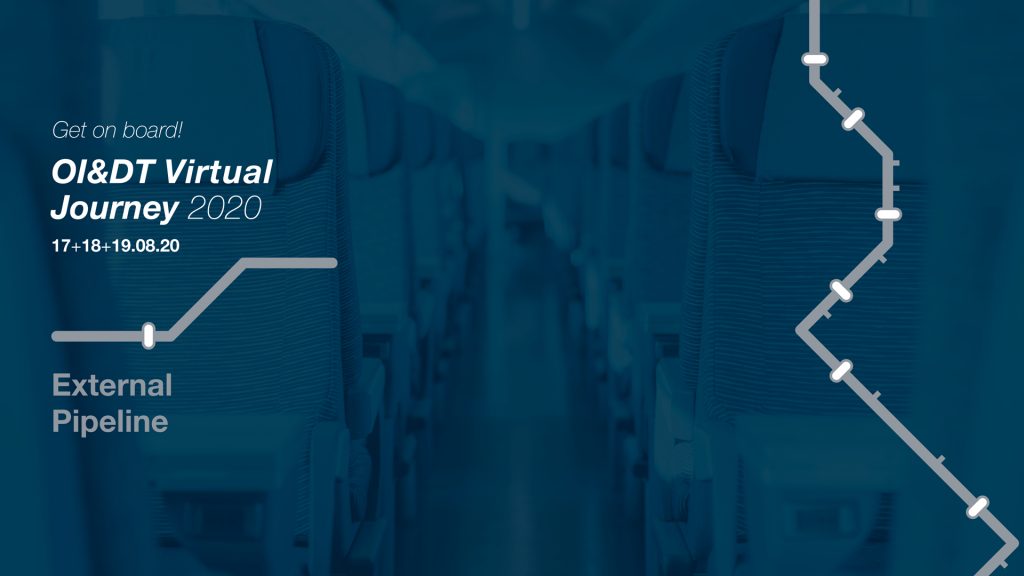
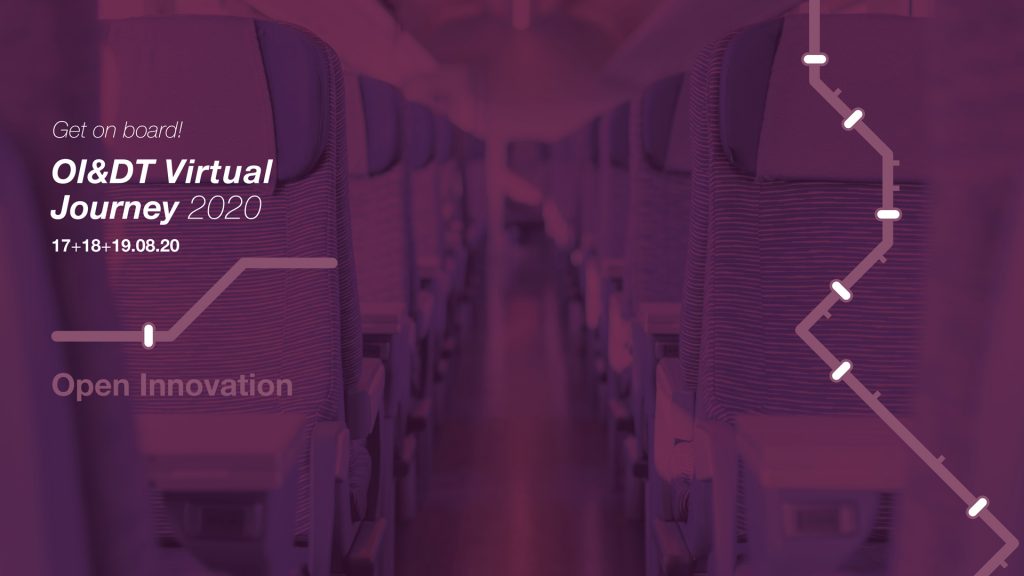
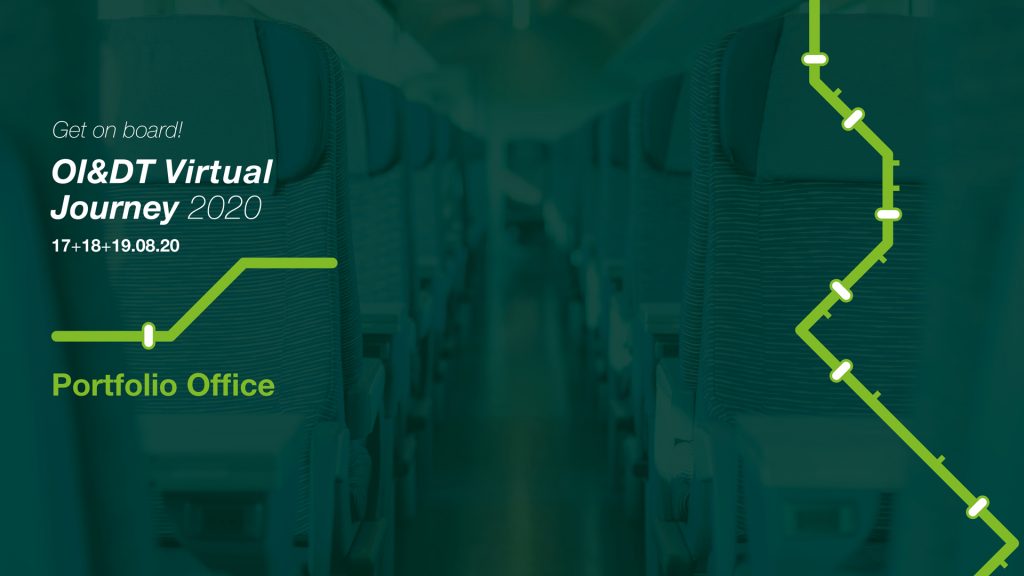
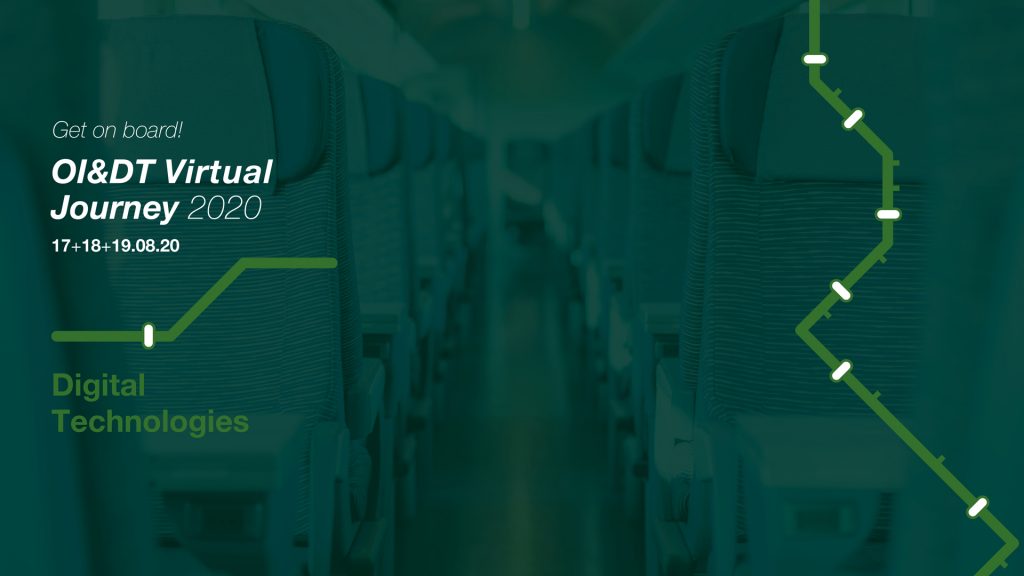
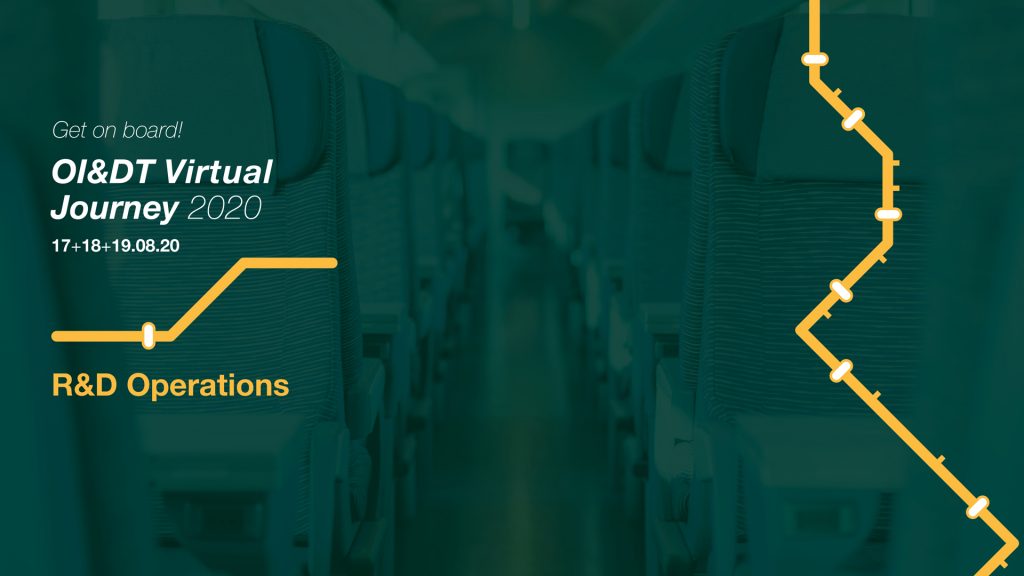
Microsoft Teams Background Images
- Download your backgrounds here
- To alter your background after you've already joined a meeting, go to your Meeting Controls and select More Actions … > Show Background Effects
- To upload an the images of your own, select Add new and pick the downloaded file from your computer
- Enjoy!



Templates
- Download the Template
No downloads available at the moment. Please check again later.